
Create Summaries of Frigate Alerts using Generative AI
I show you how to use Ollama with Frigate's new amazing feature that summarizes alerts from your cameras.
The latest beta version of Frigate, as of this writing, (o.17 beta 1) includes new Generative AI capability in the form of Review Summaries. This new feature allows the ability for Frigate to send image(s) to AI and receive back a description of what happened during an alert sequence in the form of a summary.
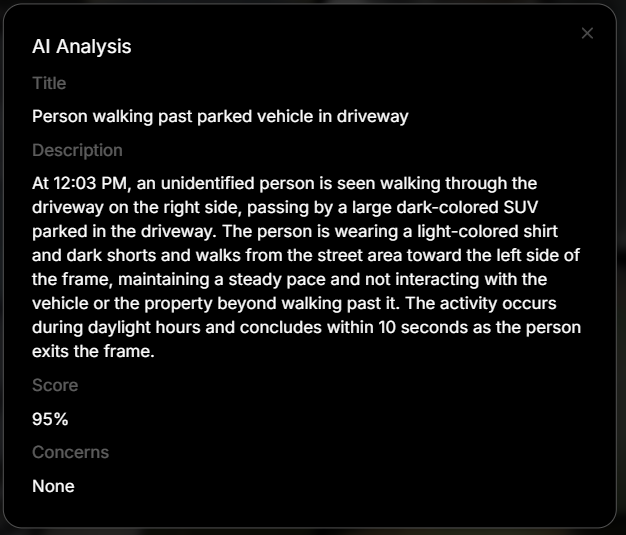
In addition, a period of time lookback can be used to provide a report of what happened during that period of time.
summary: No activity was found during this time period.My video on 0.17 beta 1 highlights this new feature. In that video, I didn't cover details of how I set up an LLM to utilize this new feature so I want to cover that here.
Watch the companion video to this blog post.
Frigate makes this quite simple as long as you have access to an LLM, and there are multiple options for that. In fact, Frigate has already provided a default prompt that gets sent to the AI along with the images to be processed.
review:
  genai:
    activity_context_prompt: |
      ### Normal Activity Indicators (Level 0)
      - Known/verified people in any zone at any time
      - People with pets in residential areas
      - Deliveries or services during daytime/evening (6 AM - 10 PM): carrying packages to doors/porches, placing items, leaving
      - Services/maintenance workers with visible tools, uniforms, or service vehicles during daytime
      - Activity confined to public areas only (sidewalks, streets) without entering property at any time

      ### Suspicious Activity Indicators (Level 1)
      - **Testing or attempting to open doors/windows/handles on vehicles or buildings** — ALWAYS Level 1 regardless of time or duration
      - **Unidentified person in private areas (driveways, near vehicles/buildings) during late night/early morning (11 PM - 5 AM)** — ALWAYS Level 1 regardless of activity or duration
      - Taking items that don't belong to them (packages, objects from porches/driveways)
      - Climbing or jumping fences/barriers to access property
      - Attempting to conceal actions or items from view
      - Prolonged loitering: remaining in same area without visible purpose throughout most of the sequence

      ### Critical Threat Indicators (Level 2)
      - Holding break-in tools (crowbars, pry bars, bolt cutters)
      - Weapons visible (guns, knives, bats used aggressively)
      - Forced entry in progress
      - Physical aggression or violence
      - Active property damage or theft in progress

      ### Assessment Guidance
      Evaluate in this order:

      1. **If person is verified/known** → Level 0 regardless of time or activity
      2. **If person is unidentified:**
        - Check time: If late night/early morning (11 PM - 5 AM) AND in private areas (driveways, near vehicles/buildings) → Level 1
        - Check actions: If testing doors/handles, taking items, climbing → Level 1
        - Otherwise, if daytime/evening (6 AM - 10 PM) with clear legitimate purpose (delivery, service worker) → Level 0
      3. **Escalate to Level 2 if:** Weapons, break-in tools, forced entry in progress, violence, or active property damage visible (escalates from Level 0 or 1)

      The mere presence of an unidentified person in private areas during late night hours is inherently suspicious and warrants human review, regardless of what activity they appear to be doing or how brief the sequence is.
I was using the free tier of Google Gemini but, coincidentally around the same time, they limited the free tier to such a low limit that it became unusable for the purpose of review summaries. At first I thought it was a configuration issue on my end but then realized, based on comments from others, that the model limits were the issue.
For that reason, I had to pivot to using Ollama and their cloud model. Of course, you will need to have an Ollama account in order to use their cloud models.
A requirement to use Frigate with Ollama is that you must use a vision capable model since you will be sending images for processing. You can use your own hardware and download a model locally if your hardware has the horsepower to handle the work. According to the Frigate docs for Ollama the following applies:
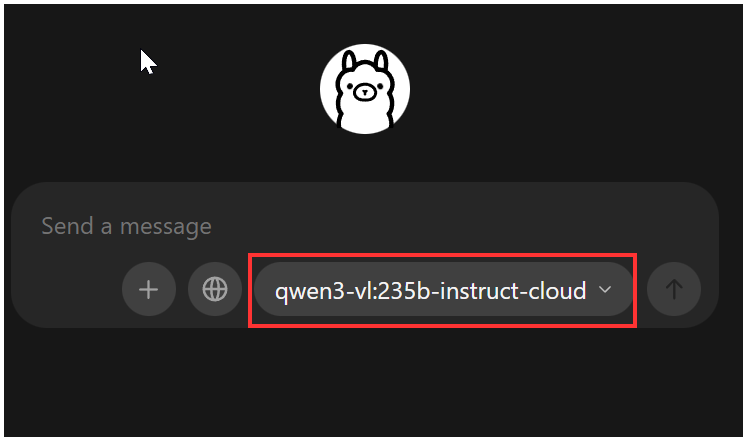
When I started using Ollama, as a proof of concept, I downloaded the client to my Windows 10 PC from https://ollama.com/. Based on comments from the Frigate developers, the qwen3-vl model is far superior to other models and so I chose qwen3-vl:235b-instruct-cloud as my model of choice in the model drop down of the client.
Frigate configuration for Ollama is designed to allow connection to a local instance of Ollama. Running the client as I was doing serves this purpose, even when using a cloud model. One thing you need to set is to allow remote access to the client by toggling the "Expose Ollama to the network" option in the client.
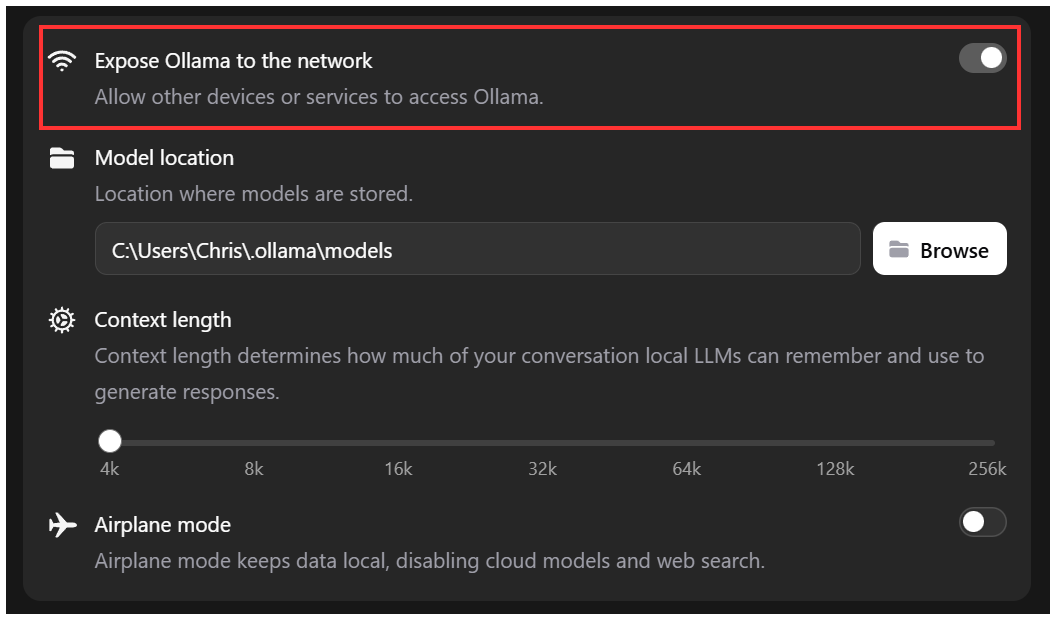
That is all that is required to allow access to the client. If your Windows computer has restrictive firewall settings for inbound connections then you will need to adjust.
Adding the config to Frigate is simple. For Ollama, at the global Frigate configuration genai level, set the provider, base_url, and model. The base_url is the IP where my client is installed.
genai:
  provider: ollama
  base_url: http://172.31.10.10:11434
  model: qwen3-vl:235b-instruct-cloud
That's it. Install Ollama client, set it to allow network access, and configure Frigate to talk to the client. Voila.
What if I want to run Ollama more like a server?
The Windows client setup was working just fine as a proof of concept, but I didn't want to run the it just to be able to use it as a proxy for Frigate. For that reason, I installed a new LXC container on my Proxmox server and ran Ollama in a docker container. Of course, since this is docker, you have more options than what I am showing here. Choose your own adventure.
Once I had all the prerequisite packages installed to be able use docker, I ran
docker run -d -v ollama:/root/.ollama -p 11434:11434 --name ollama ollama/ollamaThis installed and ran a docker container. Once it was up and running, I needed to sign that machine into my Ollama account. This command gets you into the docker container.
docker exec -it ollama /bin/bashOnce inside the container, issue the command:
ollama signinFollow the prompts to authorize that machine. You should have the device show up in your Ollama account on the keys page under Device Keys.
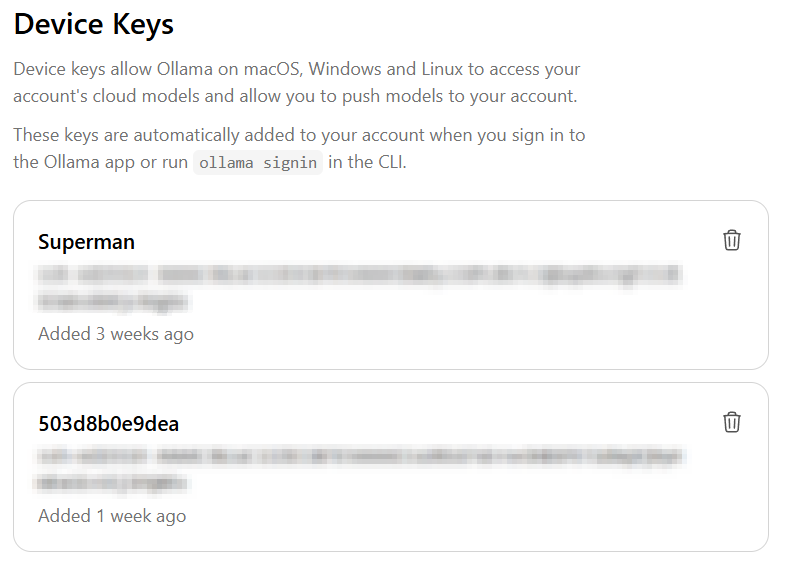
After doing the above, I initiated the model I was going to use. You can do that while still inside the container (omit the 'docker exec -it' from the below command) or run it from the host with docker exec like so:
docker exec -it ollama ollama pull qwen3-vl:235b-instruct-cloudAll you need to do now is change Frigate to point the base_url to the IP of the new location where the docker container is.
genai:
  provider: ollama
  base_url: http://172.31.10.10:11434 ### <-- CHANGE THIS
  model: qwen3-vl:235b-instruct-cloud
Do I Even Need A Local Client?
This is all well and good, but once again I was creating a container specifically to be a proxy between Frigate and Ollama cloud. I came across a post in the Frigate Github by a user who was able to create a direct connection from Frigate to Ollama without the need for the local clients.
To do this, we need to make a couple of Frigate config changes.
- First, you need to make sure you have an API key (not a device key) defined in your Ollama account at https://ollama.com/settings/keys.
- Second, you need to change your provider in Frigate config from ollama to openai. The reason this is necessary is because there is no way to specify the api_key using ollama option.
- Third, you need to change the base url to https://ollama.com/v1 as that is the API endpoint from Ollama
There are a number of ways to specify the base URL and the API key in your configuration. I opted to use a .env file and set variables in the Frigate docker-compose.yml file.
In my .env file I have the following. This file sits in the same directory as my docker-compose.yml file.
OPENAI_BASE_URL=https://ollama.com/v1
FRIGATE_OLLAMA_CLOUD_API_KEY=my_ollama_cloud_key
In my docker-compose.yml file I have the follwing in the environment section. The PLUS_API_KEY is not needed for genai. I only have it there for reference.
environment:
  PLUS_API_KEY: my_frigate_plus_key
  FRIGATE_OLLAMA_CLOUD_API_KEY: "${FRIGATE_OLLAMA_CLOUD_API_KEY}"
  OPENAI_BASE_URL: "${OPENAI_BASE_URL}"
The new Frigate configuration block looks like this. Notice I don't specify the base_url anymore. Also notice that I don't specify the '-cloud' portion of the model. I am assuming that isn't needed because using any model directly via the API assumes cloud by default. You can see all the models available via the API at this url: https://ollama.com/v1/models
genai:
  provider: openai
  model: qwen3-vl:235b-instruct
  api_key: '{FRIGATE_OLLAMA_CLOUD_API_KEY}'
Those are three different options for using Ollama for the new Review Summaries in Frigate. They all work equally well from my limited testing. What you choose will probably depend on your skill level, available hardware, and personal preferences.
Be sure to watch my video on this as I spend a moment talking about MQTT and turning genai on/off using switches in Home Assistant.